
This warning message appears when the timestamp of the imported scene in the DCC app (3dsMax or Cinema4D) is older than the timestamp of the scenes saved on that Anima project. The message recommends re-importing that outdated scene to avoid issues, as you can see in the sample image below (3dsMax sample):
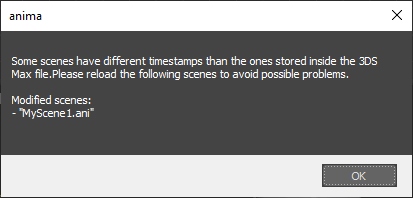
This message will only appear in a standard interactive session of the application (with UI). Instead, when rendering through a render manager, this message will appear only in the render log of the node.
The message can be easily avoided by using the "Rebuild Material" button available in the plugin or, alternatively, re-importing the Anima scene again:

After that, keep in mind that you must save the 3D scene again before you send it to render.
Why is this useful?
When an Anima scene that has already been imported into a max/c4d file is modified in some way, it changes the number of actors present in the scene and their indexes, which may lead to having the wrong mapping applied to those assets in the renders.
What is happening under the hood is that the modification triggers the regeneration of the textures that are placed in the texture_cache folder, modifying the paths of those textures and messing up the materials that were already saved in the main scene or the DCC app. Then, when that scene is opened again (either from the same machine or from a render node), the Anima project is not reloaded automatically, and some actors may get their textures pointed to image files that actually belong to other actors.
Showing that warning message helps users realize that they need to reload or reimport the scene whenever possible to avoid such issues.
Why is not the Anima content reimported automatically every time the scene is loaded?
The reason is explained in detail in the following article: