
Overview
The purpose of this tutorial is to demonstrate the creation of materials suitable for jewelry, with the main focus being on gem materials. In addition to this, it will briefly cover the lighting/illumination aspect as well.

Download files
An archive of the project file for this guide can be found here.
Using Chaos Cosmos
The Chaos Cosmos provides pre-made materials for various purposes, including gem presets and precious metals like gold, silver, and copper. Additionally, you can use HDRIs from the Cosmos Browser to light your scene.
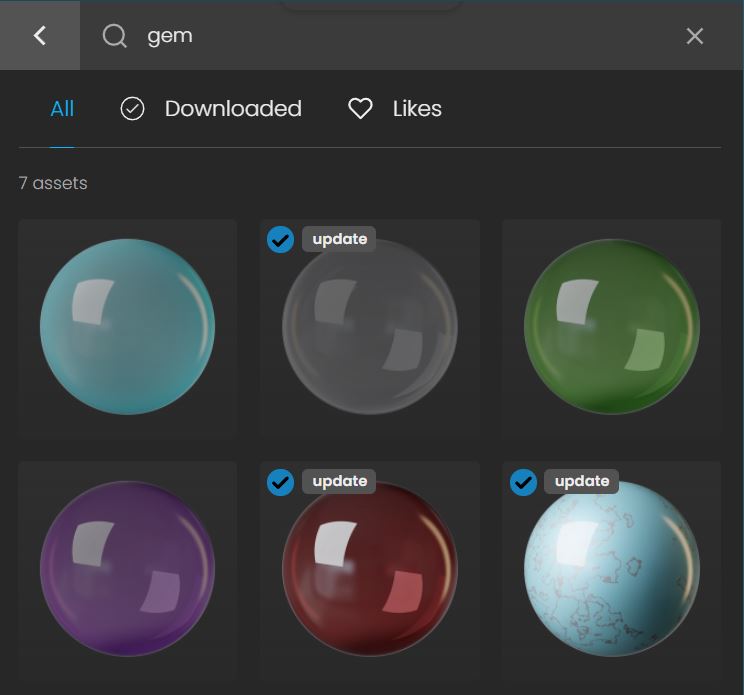

Creating materials
Understanding how these materials are constructed can be beneficial, offering creative and flexible solutions tailored to your project's requirements. This tutorial will break down some example materials.
Gold Material
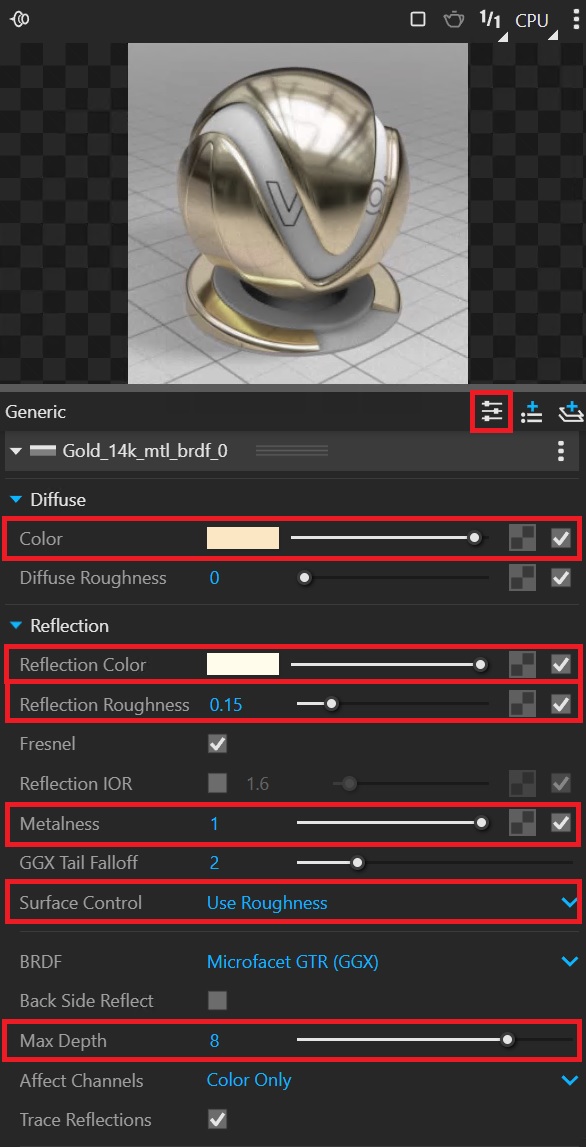
In this example, the goal is the creation of a "14k Gold" material. As a starting point create Generic V-Ray material and enable Advanced Settings. Follow these steps to configure the material:
- Set the Diffuse Color to a value between yellow and orange. Here we use 251, 231, 196 on the 0-255 RGB color code.
- Adjust the Reflection color slider to almost 100%.
- For a slightly blurry effect, switch the Surface Control to Use Roughness and set the Reflection Roughness to 0.15.
- To achieve a metallic look, move the Metalness slider to 1.
- Increase the Max Depth to a value of 8.

Gemstone
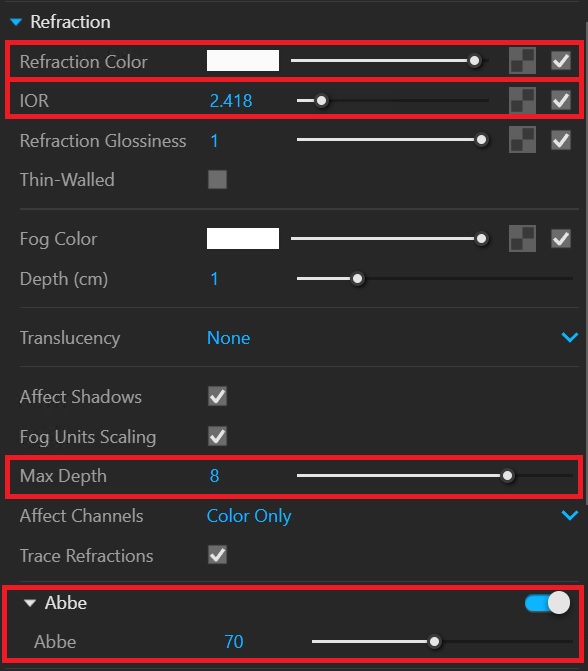
Again create Generic material and enable Advanced settings. Follow these steps to adjust the settings:
- Set the Diffuse Color to black.
- Adjust the Reflection Color to almost pure white.
- Increase the Max Depth in the Reflection settings to 8.
- Also set the Max Depth in the Refraction settings to 8.
- Set the Refraction Color to almost pure white.
- Specify the IOR value as 2.418, which is the index of refraction for diamonds. Use reference sheets for accurate IOR values for different materials.
- Configure the Abbe value to 65-70 to achieve the distinctive iridescent effect.

Changing Gem color
To change the color of a gem, use the Fog color parameter. The Depth parameter controls the fog's strength; a higher value reduces intensity. For example, applying a gentle reddish hue can result in a Ruby-like gemstone:
Environment setup
To enhance your scene environment, use an HDRI. In this example "Studio 007" HDRI from Chaos Cosmos is used.
Applying the HDRI:
- Create a Dome Light in your scene.
- Paste the "Studio 007" HDRI into the Dome Light's Color/Texture HDR texture slot.
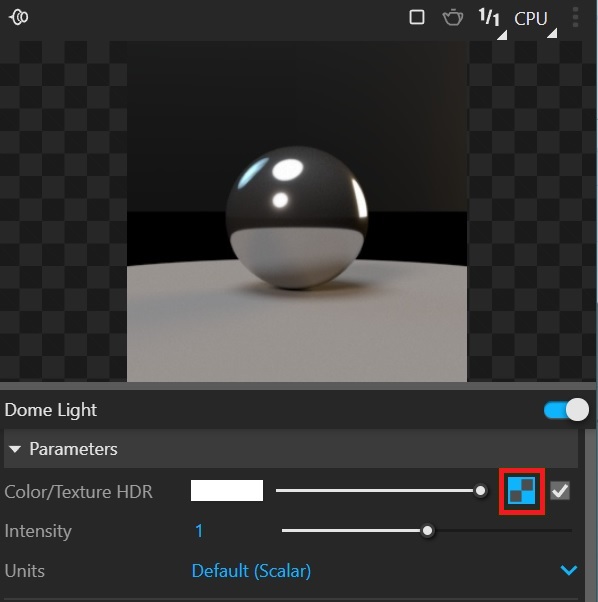
Note: You can rotate the Dome Light in V-Ray and Rhino through the viewport. Adjusting the rotation can help achieve the optimal lighting angle.
Environment adjustments
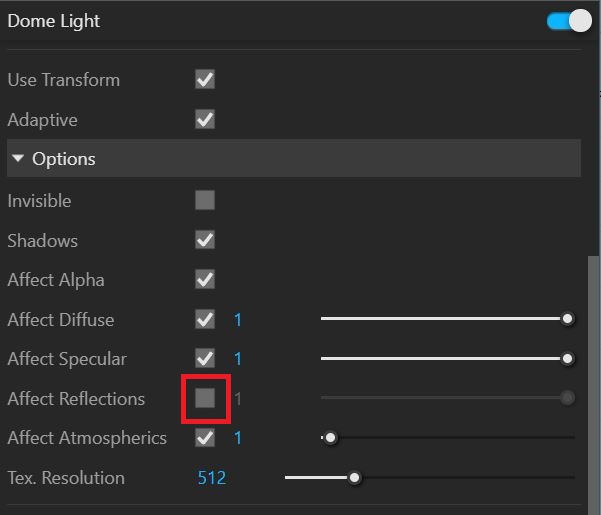
You can mix Environments through a combination of the Dome Light’s Options menu and the V-Ray Asset Editor > Render Settings > Environment parameters. As an example, a different HDRI can be used specifically for for Reflections parameter, while every other aspect of the environment will be controlled by the Dome Light’s HDRI:

Additional light sources
Add additional light sources like Spot Light or Rectangle lights pointed at the jewelry at different angles to enhance reflections and create a more appealing render:

Caustics
Enable Caustics to allow metals and gems to refract light and cast iridescent lights on nearby surfaces. Note that this increases render times:
Note: Caustics will increase the render times noticeably.

Lens Effects
Use Lens Effects to enhance the final render with glare and bloom effects:

See also: